Jack McCausland


Jack McCausland
Photography, Graphic Design, Media

Removing certain colours for a chromakey background. ('GreenScreen')
For this, I typed in chromakey in the effects panel, clicked and dragged the effcet onto the clip I wanted to apply the effect on. Then in the effect control window, I could then select the colour I wanted to disapear with the colour select tool.
Straight away, the computer knows what colour to iliminate on the chosen clip.
This doesn't just have to be applied onto a bright, neon green; it can be any colour.
In this mini project, I learnt how to put specific objects behind other objects, so they appried as if they were inside/on/behind another.
In this case, we got set a task to place a T.V on a carpet, and infront of a wallpaper, while playing a moving clip.
Firstly, we had to start off by removing the centre of the T.V, so we could place a clip behind it; so we went over into photoshop to remove the background, simple by quick selecting the dark green and white area, and removing it.
Saving it as a PNG file is important, so I could then work with it in premier pro, with the background still removed.


Then, I simply draged and dropped the two images of the floor and wallpaper onto the track.
It is important that I had the layers underneith the T.V on the sequencing pannel, so the T.V didn't apear behind the wallpaper, or under the carpet.
Now I had this done, I could then fill in the screen with a moving image.
When I dragged this movie in, I made sure it was under the T.V layer, but above the wallpaper and caerpet. This mean't it'd wouldn't be hidden by anything, but be framed by the tv.
To resize the clip, make sure the layer is selected, on the sequence plannel, and then douple click on the screen, then click and drag where ever (so it fitted in the TV, in this case).
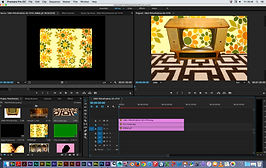

I repeted this same technique, with a train station, and a movie clip, showing behind the pillars.
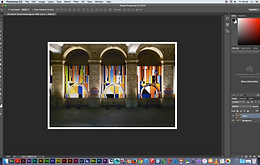
1) Get image.
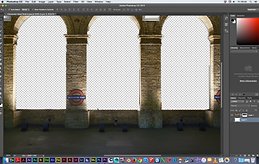
2) Get rid of chosen background in photoshop.

3) Save as PNG. Open in Prem. Pro.
4) Put chosen video behind image layer.